
ChatGPT Coding for Beginners: How to Use AI Without Knowing Code in 2025
This article on ChatGPT coding for beginners isn’t about becoming a developer, it’s about avoiding the wasted hours and frustration I went through when I built this blog. When I first started, I didn’t know CSS from JavaScript. I just wanted a clean site to share my travels and finance insights. But the moment I tried to customize it, I hit coding roadblocks everywhere.
Like many beginners, I assumed ChatGPT could just “do it for me.” I’d type something vague like “write the code for this,” paste the answer straight into WordPress, and hope for the best. Sometimes it worked, but usually I was left in frustration.
Later, I discovered my struggles weren’t unique. Beginners often trip up because they give ChatGPT vague prompts with little context, which leads to the same broken layouts and wasted time. It’s all about learning how to work with AI step by step so you get usable, reliable results.
In this post, I’ll share the best practices I’ve learned, from trial and error on my own site to expert research on what actually works. This isn’t a coding tutorial. It’s a practical guide for beginners who want to make ChatGPT a real coding sidekick instead of a time sink.

7 Steps to Use ChatGPT for Coding as a Beginner
If you’re new to ChatGPT coding for beginners, chances are you’ve already wasted an hour copy-pasting random snippets, refreshing your site, and wondering why nothing looks right. I’ve been there. When I first built this blog, I treated ChatGPT like a magic website builder, and ended up breaking more things than I fixed.
The good news? You don’t have to repeat those mistakes. These seven steps are the big picture roadmap that turns ChatGPT into a helpful coding assistant.
1. Start With the Right Mindset — ChatGPT Isn’t Magic
Think of ChatGPT as your junior coding buddy. It can guide you, explain fixes, and save you hours, but it won’t deliver a perfect, finished site with one click.
2. Give Clear Context — Vague Prompts = Vague Results
Tell it what platform you’re on (WordPress, Shopify, Webflow, Zendesk) and paste the relevant snippet. The more context you give, the more accurate (and less frustrating) the answer will be.
3. Ask for Small, Surgical Edits — Rewrites = Broken Layouts
One of my earliest mistakes was asking ChatGPT to “rewrite everything.” Half the time, important details disappeared. Instead, ask for a specific fix: “Here’s my form CSS, the button won’t center. Which lines should I change?”
4. Test Each Change — Because “Looks Fine” Usually Isn’t
Paste the code into a staging site or sandbox, then refresh. If it works, great. If it doesn’t, you’ve only broken one small piece, not your entire layout.
5. Use AI to Debug Step by Step
If something breaks, don’t panic. Copy the error message or show ChatGPT what’s happening, then ask: “What’s the likely cause, and how do I fix it?” Debugging step by step is where AI really shines.
6. Refine With Better Prompts — Vague → Specific Is How You Win
When the first answer fails, don’t quit. Re-ask with more detail, or break the problem into smaller parts. Iteration beats zero-shot prompting every time.
7. Build Good Habits Early — Backups = Lack of Stress
Keep backups of your code, save working versions, and jot down what solved your issue. You’ll thank yourself later, and you’ll start recognizing patterns that make coding feel less scary.
These are the seven steps of ChatGPT coding for beginners. This is the roadmap I wish I had when I started. In the next sections, I’ll break each step down with real examples, research-backed best practices, and (yes) a few horror stories from my own site.

Step 1 — Start With the Right Mindset: ChatGPT Isn’t Magic
How I Messed This Up
When I first started building this blog, I thought ChatGPT would just do it all for me. I’d paste in a block of CSS and say something vague like “rewrite this so it looks better.” Sometimes it worked, but a lot of the time I ended up breaking my site and wasting hours trying to fix it.
The real issue wasn’t the code, it was my mindset. I was treating ChatGPT like a magic website builder, when really it works best as a junior assistant that needs direction. I’ve written more about this mindset in How to Use AI to Learn Faster (Without Losing Your Critical Thinking), where I break down how using AI intentionally, as a learning partner instead of a shortcut, completely changes what you get out of it.

What the Research Says
OpenAI’s prompt engineering best practices emphasize iteration: start with a draft, review, and refine. Beginners fail most often when they expect perfect, one-shot answers.
A 2025 study on AI-assisted coding, Exploring Prompt Patterns in AI Code Generation, found that developers produced higher-quality code through iterative collaboration with ChatGPT compared to one-time prompts. In other words: treating AI as a partner, not a magic box, is what leads to success.
How to Do It Right
- Shift your mindset. Don’t expect one-click solutions. Expect to guide ChatGPT like a junior teammate.
- Focus on outcomes, not magic. Instead of “fix my site”, try “make this sidebar sticky on desktop only.”
- Iterate deliberately. Ask → test → refine. Small loops beat one big ask every time.
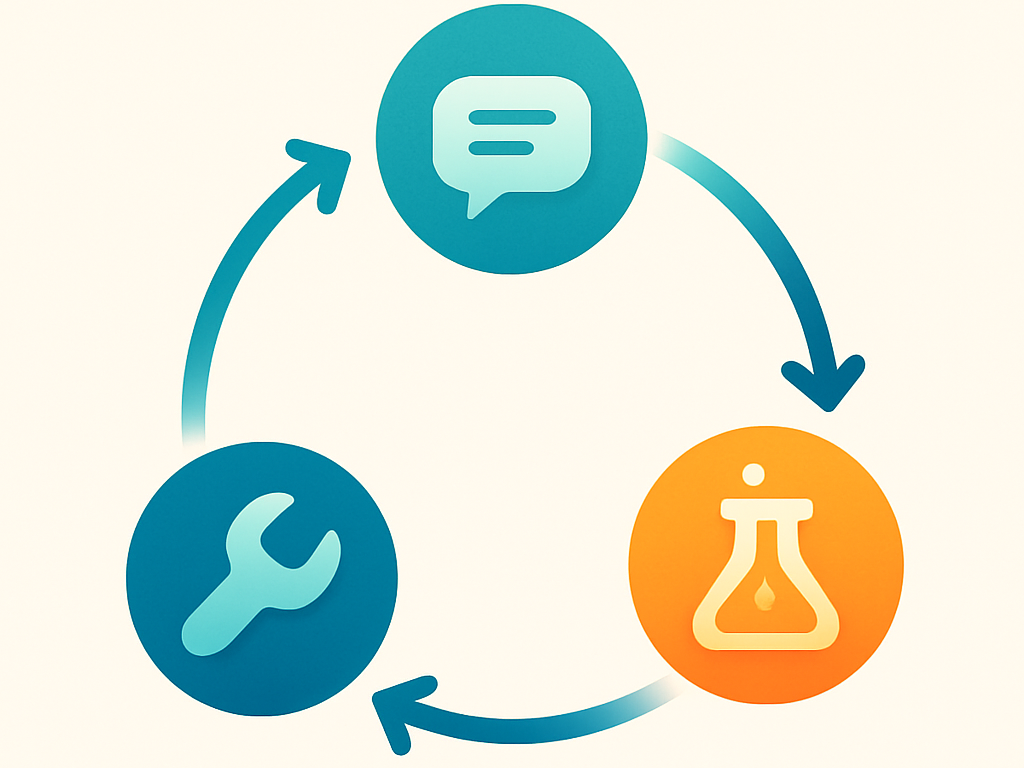
Bottom line: If you expect ChatGPT to “just build it,” you’ll waste time and break things. If you guide it like an assistant, with clear outcomes and iterative feedback, you’ll actually save hours and learn along the way.
Step 2 — Always Give Context When Using ChatGPT for Coding
How I Messed This Up
When I first started, I’d paste in a line or two of CSS and say “fix this.” Or I’d go even vaguer: “Make this look better.” ChatGPT gave me code, but most of the time it didn’t actually work in my setup. One time, I asked it to fix spacing in WordPress. It gave me “vanilla” CSS that looked fine in theory, but when I pasted it in, the entire sidebar collapsed.
The problem wasn’t ChatGPT being “bad at coding.” It was that I hadn’t told it what platform I was working on, what theme I was using, or even where the code would live. Without context, it had to guess, and guessing usually meant broken layouts.
For a deeper dive into prompt strategy and practical examples, take a look at my Prompt Engineering Guide 2025.

What the Research Says
Researchers at MIT point out that effective prompts are built on specific context, not vague requests. Their guide on effective prompts notes that context is one of the three pillars of getting useful results (along with clarity and iteration).
AugmentCode makes a similar point: “Context is not just more information, it’s the right information at the right time.” Flooding ChatGPT with irrelevant details isn’t helpful; giving it the environment and the problem is what makes the answer usable.
Even GitHub Copilot’s official best practices emphasize keeping relevant files open to give the AI the proper context. The same applies to ChatGPT: if you give it the file, you also need to tell it where the problem is.
How to Do It Right
- Mention your environment. Example: “This is for a WordPress site running Kadence theme” or “I’m editing a Zendesk help center template.” If you aren’t sure what details to provide, ask ChatGPT what it needs. This has been incredibly beneficial for me, but don’t forget to specify that you want one question at a time.
- Share relevant code. Paste the snippet or, if necessary, the whole file, but always make sure it’s tied to the problem you’re solving.
- Frame your request around the issue. Don’t say “rewrite this file.” Instead, highlight the part that needs fixing.
Bad Prompt (no context):
“Rewrite my CSS so the form looks better.”
Better Prompt (with context):
“Here’s my full CSS file for a WordPress site (Kadence theme). On desktop, the form submit button isn’t centered. Which lines should I edit to fix this, without changing unrelated styles?”
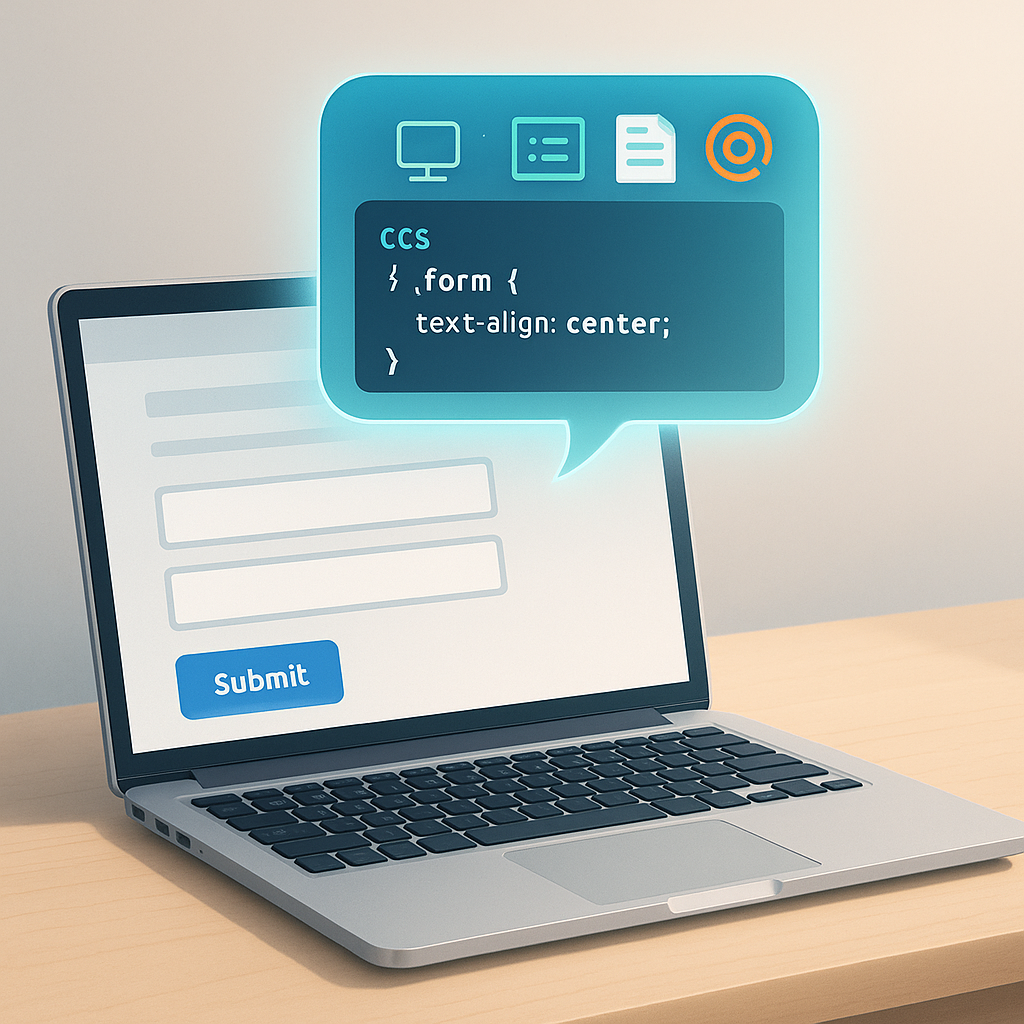
Key takeaway: It’s okay to paste an entire file if it’s relevant, but don’t hand it over for a full rewrite. Use the file as context and then ask for a targeted fix.
Step 3 — Ask for Small, Surgical Edits Instead of Full Rewrites
How I Messed This Up
When I first started, I treated ChatGPT like a bulldozer. I’d paste in a full CSS file or a block of HTML and say: “Help me fix this.” Sure enough, ChatGPT would spit out a complete new version. The problem? Whole sections I hadn’t even mentioned were changed or missing. Suddenly my site looked worse than before.
The mistake wasn’t sharing the file, it was asking ChatGPT for a total rewrite instead of a targeted fix. Beginners often think rewriting is faster, because then they don’t have to dig through their own code to find the exact lines to change. I did the same thing, “just rewrite it so I don’t have to look for it.” The problem is, rewrites almost always strip out important details or quietly change things you didn’t ask for.

What the Research Says
Experts consistently caution against asking AI to regenerate entire files when all you really need is a fix.
Google Cloud’s guide on prompt iteration advises breaking requests into smaller, well-scoped pieces — in practice, that means asking for the specific change you want instead of telling the AI to start over.
The Harvard Business Review echoes this in its article on collaborating with AI: users achieve better results when they treat AI like a teammate making incremental adjustments, not a contractor tearing everything down and rebuilding it.
Academic research confirms this. In Evaluating Large Language Models Trained on Code, researchers found that models like ChatGPT performed significantly better on localized, specific coding tasks than on broad prompts that required regenerating whole files or programs.
The takeaway is clear: AI coding tools deliver their best results when guided toward small, targeted edits, the kind of incremental fixes beginners should lean on.
How to Do It Right
- Highlight the problem, not the file. Example: “On my Shopify product page, the images don’t resize on mobile.”
- Ask for only the changed lines. Don’t let ChatGPT rewrite what isn’t broken.
- Work in small loops. Fix one issue, test it, then move to the next.
Bad Prompt (rewrite request):
“Rewrite my whole Shopify product page so the images display better.”
Better Prompt (surgical edit):
“Here’s the code for my Shopify product page. The product images don’t resize on mobile. Can you show me the specific section to adjust so they’re responsive, without touching unrelated code?”

Key takeaway: Use ChatGPT like a scalpel, not a bulldozer. Small, surgical edits save you from chasing down new bugs caused by unnecessary rewrites.
Step 4 — Test ChatGPT Code Changes Before Going Live
How I Messed This Up
In the early days of running my blog, I’d take whatever code ChatGPT gave me and paste it straight into my live site. Sometimes it worked. Other times? The layout collapsed, buttons disappeared, and I had to scramble to undo everything. I learned quickly that “move fast and paste things” is not a good coding strategy.
The biggest mistake wasn’t ChatGPT’s output, it was that I wasn’t testing changes safely. Beginners often skip this step because they just want the problem solved, but testing is what keeps your site (and your sanity) intact.
What the Research Says
When you’re working with code, AI-generated or not, testing is your safeguard, not an afterthought.
As Umbraco explains, a staging environment acts as a safe replica of your live setup, allowing you to test changes in a production-like context without breaking your site for real users.
The same point is echoed by Webflow, which highlights that staging gives teams the freedom to experiment, debug, and catch issues early without risking their site’s stability.
Even in broader software engineering, the principle is the same. According to Wikipedia’s overview of continuous testing, early and frequent testing provides immediate feedback, helping developers catch small errors before they spiral into bigger problems.
How to Do It Right
- Use a staging site or sandbox. Many hosts offer staging environments where you can test code without risking your live site.
- Backup before changes. Even a simple plugin or file copy can save hours of headaches.
- Test one change at a time. Apply the fix, check if it works, then move on.
- Roll back if needed. If something breaks, restore the last working version and try again with a refined prompt.
Bad Prompt:
“Rewrite my whole email template so it looks good on mobile.” → Paste into live campaign, formatting breaks for every subscriber.
Better Prompt:
“Here’s my email template code. The header image is too wide on mobile. Can you show me the exact line to change so it scales properly?”
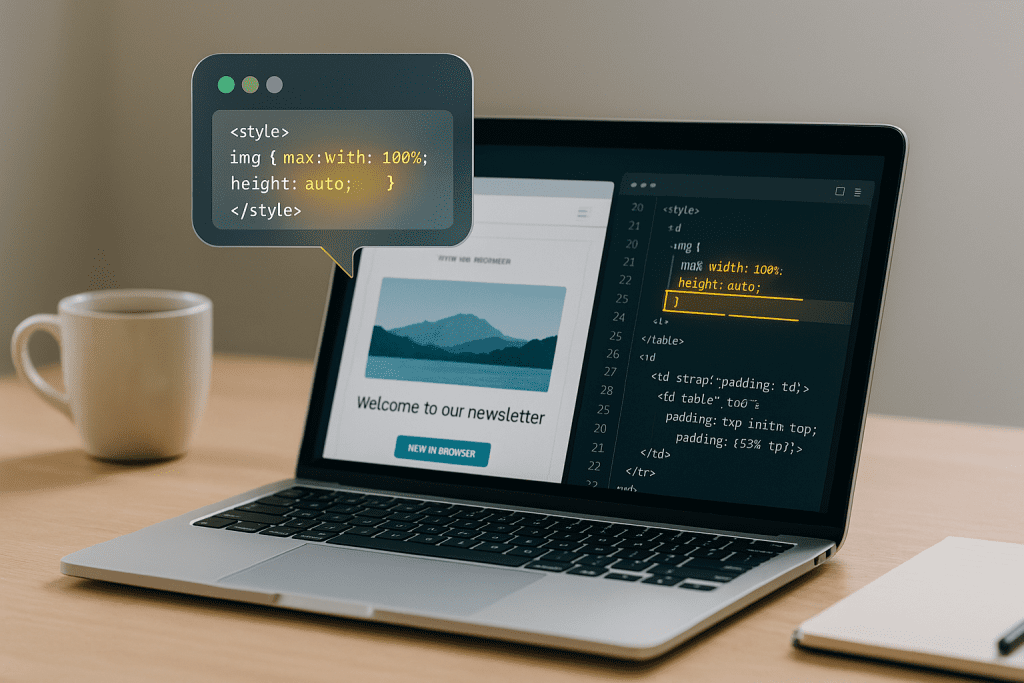
Key takeaway: Never paste AI-generated code straight into your live site. Test safely, verify the results, and you’ll avoid disasters while building confidence in your workflow.
Step 5 — Debugging with ChatGPT: Fix Errors One at a Time
How I Messed This Up
When I first started using ChatGPT for coding, nothing felt more frustrating than pasting in code, refreshing the page, and… nothing worked. My instinct was to throw the whole file back at ChatGPT with “It’s broken, fix it.” Nine times out of ten, that just led to more confusing code or new errors.
The real turning point was when I learned to treat ChatGPT like a debugging buddy. Instead of panicking, I’d paste in the exact error message or describe the broken behavior step by step. That small change completely shifted how useful ChatGPT became.
What the Research Says
Debugging with ChatGPT works best when you share the actual error and guide the AI step by step, rather than asking for a full rewrite.
As Rollbar explains, the most effective approach is to identify the problem, isolate it, reproduce it, and then use ChatGPT to understand and fix it incrementally. Dumping in the whole file skips these steps and usually creates more confusion.
Developers on freeCodeCamp’s forum make the same point: ChatGPT can be useful, but only if you double-check every suggestion and work through issues systematically. Otherwise, you risk introducing new errors while trying to fix the old ones.
Even in research, the principle holds true. The paper TED: Teaching AI to Explain its Decisions found that when AI systems provide step-by-step explanations instead of blunt outputs, users debug more effectively and build greater trust in the results.
How to Do It Right
- Paste the exact error. Don’t just say “it’s broken.” Show ChatGPT the error message or copy what happens on screen.
- Ask “why,” not just “fix it.” Example: “This code throws ‘undefined variable’, can you explain why that happens?”
- Debug incrementally. Solve one error, test it, then move on to the next.
- Use plain English if needed. Even if you don’t know the jargon, describing what you see is often enough for ChatGPT to help.
Bad Prompt (panic mode):
“This code doesn’t work. Rewrite it so it runs.”
Better Prompt (debugging mindset):
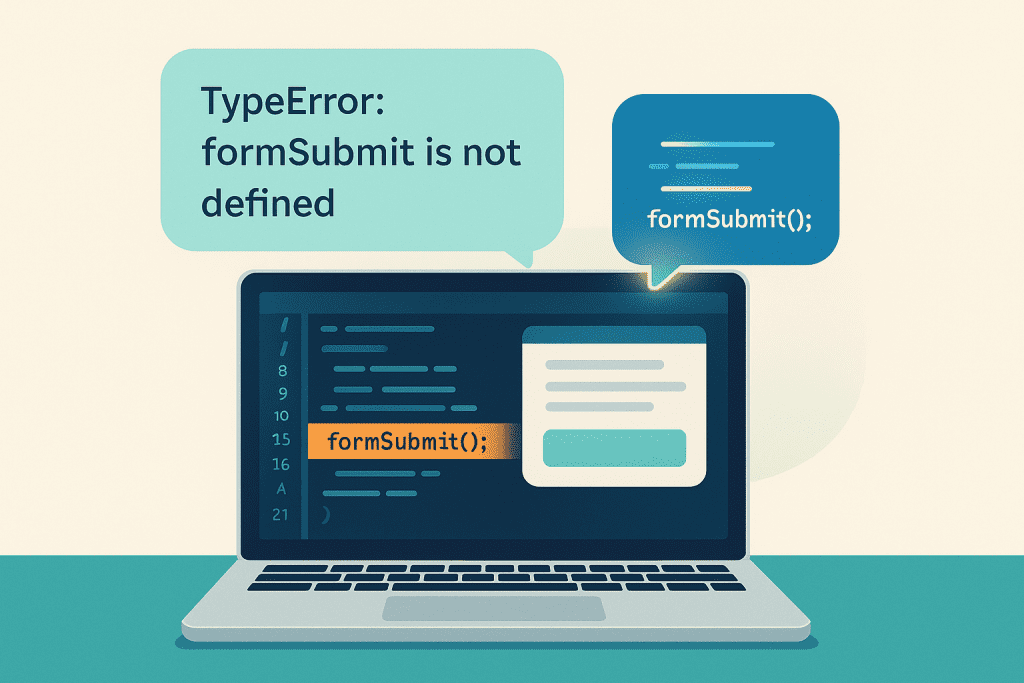
“This code throws the error ‘TypeError: formSubmit is not defined.’ Can you explain why that’s happening and show me how to fix just that issue?”
Key takeaway: Debugging with ChatGPT isn’t about dumping the whole file back in. It’s about giving it the error, the context, and asking for step-by-step explanations so you can fix issues without making things worse.
Step 6 — Refine With Better Prompts: Vague to Specific
How I Messed This Up
As I mentioned before, my go-to move was to paste the code back in whenever something didn’t work and say “fix it.” My workflow and prompts were a mess and I was just wasting hours on the little things.
The turning point came when I stopped treating ChatGPT like a vending machine and started treating it like a collaborator. Each time I re-asked with a little more detail, or broke the problem into smaller steps, the answers got better, and I started to actually understand what was happening.

What the Research Says
Iteration isn’t a backup plan, it’s the design. Large language models are built to improve as you refine your inputs.
Google Cloud explains that the most effective workflow is to start simple, review the output, then refine. Smaller, well-scoped prompts consistently lead to more accurate results than a single, overloaded request.
OpenAI’s own best practices echo this: vague prompts invite vague answers, but each layer of specificity makes the output stronger and more reliable.
Research supports this pattern too. The Prompt Patterns taxonomy shows that structured approaches, for example, asking ChatGPT to explain why something is broken before suggesting a fix, not only improve the immediate result, but also help users build reusable prompt strategies over time.
The message is clear: refining isn’t wasted effort. It’s the way AI coding tools are meant to be used, iteratively, interactively, and with increasing clarity at each step.
How to Do It Right: 5 Refinement Strategies
- Add Missing Details
- ❌ “Fix this code.”
- ✅ “Fix this CSS for my Shopify product page. The product images don’t resize on mobile, show me the section I need to edit.”
- Ask for Explanations Before Solutions
- ❌ “Fix this error.”
- ✅ “This throws the error ‘TypeError: button is null.’ Can you explain why this happens, then suggest a fix?”
- Break Down Complex Problems
- ❌ “Make this responsive, fix the spacing, and change the font.”
- ✅ “Step 1: Make this layout responsive on mobile. I’ll test it, then we’ll adjust spacing.”
- Reframe When Stuck
- ❌ “Make this div flexible.”
- ✅ “Make this image resize so it fits on one mobile screen without horizontal scrolling.”
- Compare Alternatives
- ❌ “Fix this header.”
- ✅ “Give me two different ways to fix this header alignment, one with CSS Flexbox, one with Grid.”
The difference isn’t in “trying harder.” It’s in iterating smarter. Each refinement makes your prompt more concrete, and each loop brings you closer to a usable fix.
Step 7 — Build Good Habits Early
How I Messed This Up
When I first started, I treated each ChatGPT fix like a one-off experiment. I’d paste code, test it, and move on without saving what worked or noting what broke. Inevitably, I’d run into the exact same problem weeks later and have no record of how I solved it last time. That wasted hours and left me repeating mistakes instead of building momentum.
The game-changer came when I started keeping a simple “fix log”, just a document where I copied working code snippets, prompts that got good results, and notes on what actually fixed an issue. Suddenly, I had my own playbook to refer back to, and patterns started to emerge.
What the Research Says
Even if you’re not a developer, the principles behind version control are still useful. It’s simply a way to track file history, see what changed, and revert if needed. A beginner’s Fix Log on your phone is that in spirit, simple, helpful, and forgiving.
Keeping a brief, plain-English changelog, even in a Notes app, saves you from re-solving the same problem later. Teams use it to “know what changed and why,” especially when code files don’t have clear names or comments.
And remember, backups aren’t just geeky. A recent guide for developers points out that data loss means lost work. Even a manual copy or cloud save can prevent hours of frustration.
How to Do It Right
- Keep backups. Always save a copy before pasting in new code.
- Log what works. Maintain a simple doc with working snippets and prompts.
- Track patterns. Over time, you’ll see recurring fixes (like mobile spacing issues) and know how to solve them faster.
- Adopt version control when ready. Even simple tools like GitHub Desktop can help beginners manage changes safely.
Bad Habit:
Pasting code changes into your live site without saving the old version, then scrambling to undo it when something breaks.
Good Habit:
Saving your current file/working code into your phone’s Notes app (or Google Docs, Notion, whatever you already use) with a line like: “Fix for mobile nav spacing, worked.”
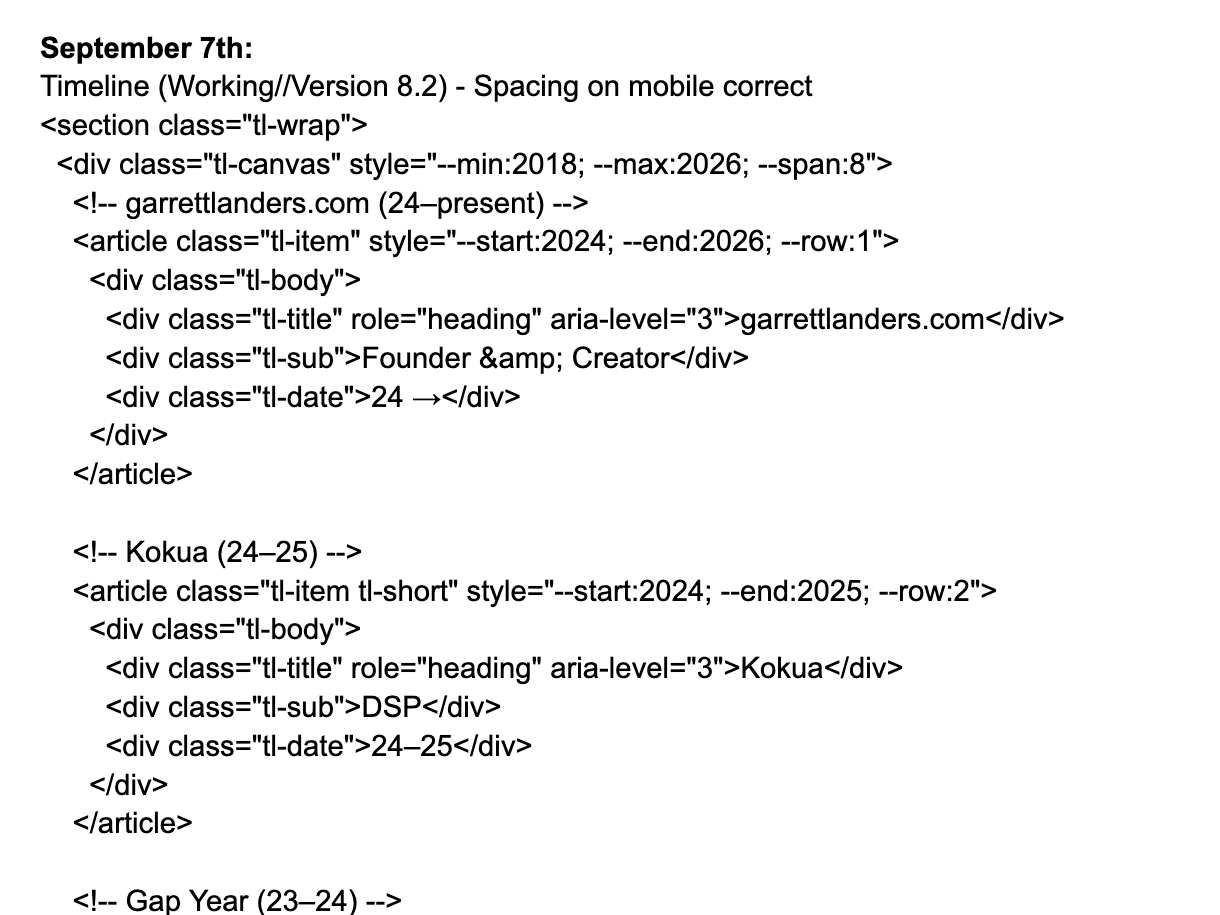
Bottom line: you don’t need to be a developer to build good habits. Even the simplest routine, backups and a notes app, saves hours of frustration and helps you actually learn over time.
ChatGPT Won’t Replace Coders, But It Can Help Beginners Code Smarter
When I first started using ChatGPT for my blog, I thought it would just do the coding for me. Instead, I broke layouts, wasted hours, and nearly gave up. What changed wasn’t ChatGPT, it was how I used it.
These seven steps aren’t theory, they’re the workflow I wish I had when I was starting out. Shift your mindset, give context, ask for surgical edits, test safely, debug step by step, refine your prompts, and build habits that stick. Put them together, and ChatGPT turns from a frustrating toy into a real coding assistant.
The key is this: ChatGPT won’t make you a developer overnight. But if you use it well, it can help you solve problems faster, learn patterns along the way, and stop wasting time fixing the same mistakes.
If you found this useful, check out my my Beginner’s Guide to Generative AI or How to Humanize AI Content (Without Sounding Like a Robot)
Frequently Asked Questions About AI Coding for Beginners
Can ChatGPT write all my code for me?
Not really. ChatGPT can generate working snippets, but it’s best seen as an assistant, not a one-click website builder. You’ll get the best results if you guide it step by step (see Step 1).
Is it safe to paste ChatGPT’s code directly into my site?
No, always test in a staging environment or a copy first. Live pastes can break layouts or functionality (see Step 4).
What should I do if ChatGPT’s code doesn’t work?
Treat it as a debugging partner: paste the error message back into ChatGPT, ask why it’s happening, and fix it step by step (see Step 5).
How do I know what details to include in my prompt?
Context is everything. Tell ChatGPT what platform you’re on (WordPress, Shopify, email template, etc.), paste the relevant snippet, and explain the problem clearly (see Step 2). Feel free to ask ChatGPT to ask you what it needs if you’re unsure what information to provide.
What’s the difference between refining a prompt and giving context?
Context = setting the scene (platform, snippet, problem). Refinement = iterating your request until the output is right (see Step 6). Beginners often mix them up, but both are essential.
How can I avoid losing fixes that worked?
Start a simple Fix Log, even in your phone’s Notes app. Copy the working code, add a one-line description of what it solved, and you’ll save yourself from repeating mistakes later (see Step 7).